
You may occasionally notice that Google Health data is missing or not syncing correctly in the MyDataHelps app. This guide provides solutions to the most common connection issues, such as no data appearing, reconnecting your Google Health, or selecting the wrong device or Google Health account.
This guide is specific to Google Health connection issues within the MyDataHelps app. For issues related to the Google Health app or Google wearable devices (e.g., Fitbit) such as app crashes, Google account issues, device not turning on), please refer to the Google Health Help Center.
I don’t see any Google Health data in MyDataHelps
Either you may not see any Google Health data in your MyDataHelps app, or your study coordinator may have told you that no Google Health data is coming through. There may be a few reasons why this is happening. Please check the following before trying any troubleshooting steps below.
What to check:
- Make sure you’ve connected your Google Health account to MyDataHelps.
- Confirm you are logged into the correct MyDataHelps account (email- vs. phone-based account).
- Make sure you are wearing your device and that it’s syncing to the Google Health app on your phone.
- Open the Google Health app regularly to trigger a data sync from the device.
- Note that syncing is not always immediate or real-time. Google Health sends data to MyDataHelps periodically, so it may take some time for your data to appear.
What to do:
- Open the Google Health app on your phone to manually sync your device.
- In MyDataHelps, tap Account > Providers / Health Plans / Devices.
- If Google Health shows “Connected” or “Last updated”, the connection is active.
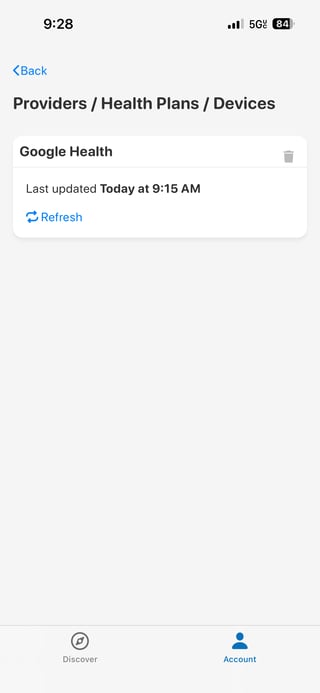
- If Google Health shows “Connected” or “Last updated”, the connection is active.
-
- If you don’t see the Providers / Health Plans / Devices menu option, don’t see Google Health listed on the page, or see an error like “Authorization expired” under Google Health, please follow the steps below.
My Google Health isn’t syncing or it says it needs to be reconnected
This may happen if:
- The Google Health account connection has expired its access.
- The wrong Google Health account was connected.
- The device isn’t syncing with the Google Health app.
If you are prompted to reconnect:
- Open MyDataHelps.
- Tap Account > Providers / Health Plans / Devices.
- Tap “Reconnect”.
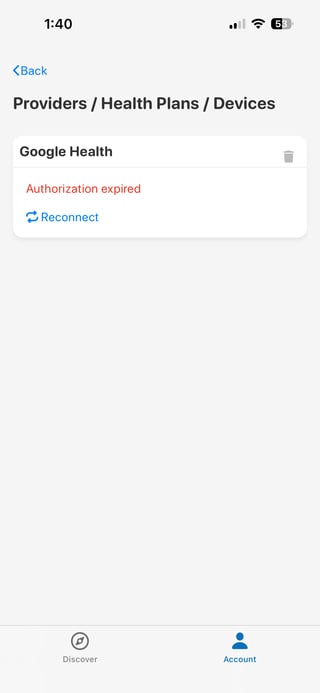
- Log in using the same Google account you use in the Google Health app.
If you want to manually remove and reconnect your Google Health:
- Open MyDataHelps.
- Tap Account > Providers / Health Plans / Devices.
- Tap trash icon to remove the Google Health connection.
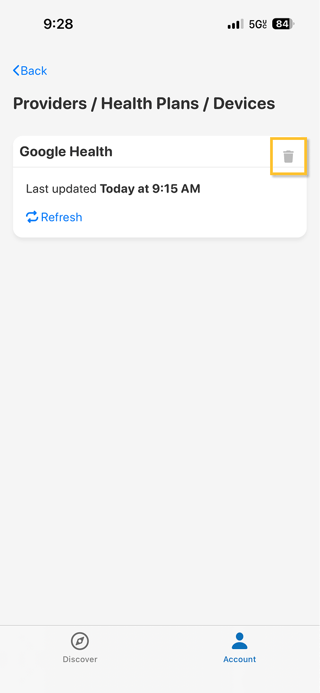
- Go to the MyDataHelps Discover page by tapping the “Discover” under MyDataHelps.
- Tap “Connect Devices”.
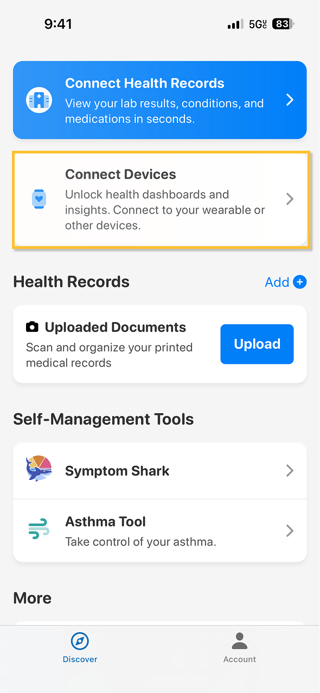
- Tap “Connect” next to Google Health.
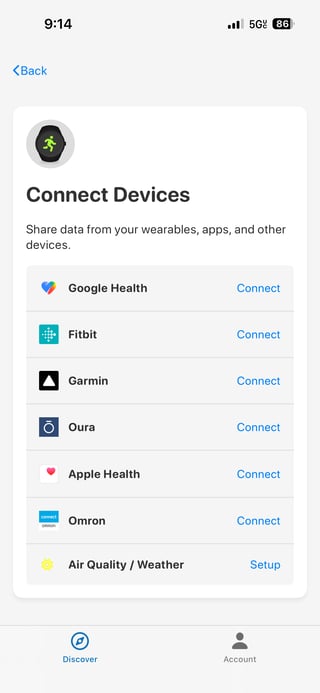
- Log in to the same Google account you use in the Google Health app.
- On the data sharing screen, tap Allow All or select the data you want to share.
I connected my Google Health account, but it’s showing data from a different device
This can happen if your Google Health account is paired with a different device.
How to check which device is set up on Google Health:
- Open the Google Health app.
- Tap the Connections icon in the top left corner > Tap “Devices”.
- Check which device is connected to the Google Health account.
- If an older device is showing, remove it from your account.
If you’d like to connect a different device (within the same Google Health account), you can do so by opening the Google Health app and pairing the new device there. Once the new device is connected to your Google Health account, MyDataHelps will automatically begin syncing data from it.
If you need to connect a different Google Health account instead, please follow the steps to remove your current Google Health connection and reconnect using the correct account.
I’m not sure which Google Health account I used to connect to MyDataHelps
This can happen if:
- You're logged into the wrong Google Health account in MyDataHelps.
- You connected a different Google Health account than the one your device is actually using.
Note: Google Health requires all accounts to use a Google login.
If you're unsure which account you're using:
- Open the Google Health app on your phone.
- Tap your profile icon in the top right corner.
- Look for the Google email address listed under your profile.
- This is the account you should use when connecting Google Health in MyDataHelps.
If you connected the wrong account in MyDataHelps:
Follow the steps to manually remove and reconnect your Google Health account.
If you are still not seeing data after reconnecting, please make sure your device is syncing with the Google Health app by opening the Google Health app while wearing the device.I need to adjust which Google Health data is shared with MyDataHelps
When you first connect your Google Health account to MyDataHelps, you’re asked to allow access to specific types of data such as:
- Google Health profile data
- ECG data
- Health metrics and measurement data
Some studies may require specific data types to be shared. If your study team lets you know that certain data is missing or needs to be added, you'll need to delete your current Google account connection and reconnect with the correct data-sharing permissions.
- Open the Google Health app on your phone.
- Tap the Connections icon (top left corner).
- Select “Apps and services”.
- Look for CareEvolution in the list of connected apps and tap it.
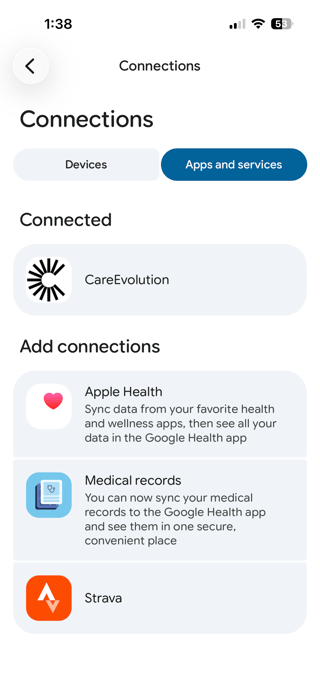
- Tap “CareEvolution” again from the linked app list.
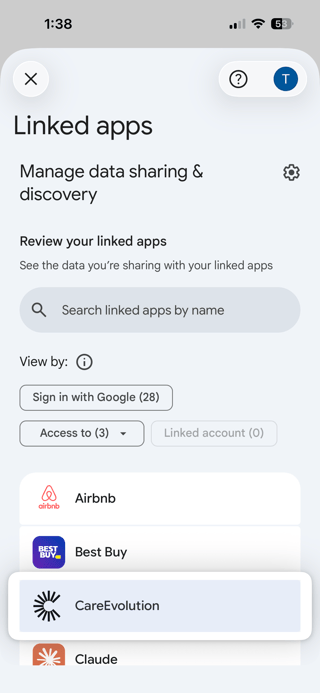
- Scroll down and tap “Delete all”.
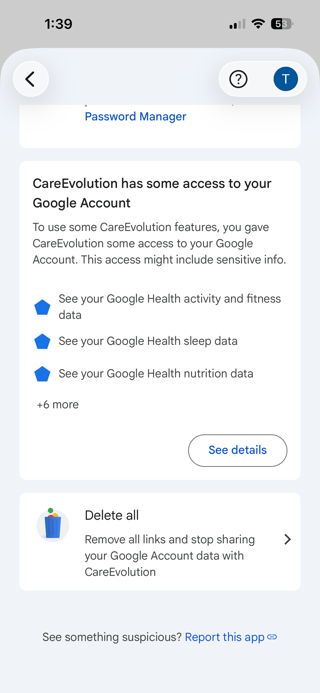
- Follow the steps to reconnect Google Health in MyDataHelps, selecting data points you need to share with MyDataHelps.
I’m trying to connect a different Google Health account, but MyDataHelps keeps reconnecting my old one
This can happen if you previously connected a Google Health account and are still logged into that same Google Health account in your web browser or on your device. When MyDataHelps redirects you to Google Health to reconnect, Google may automatically authorize the account you’re already logged into without showing the login screen, causing the old account to reconnect again.
Why this happens:
Google uses your browser and device login session to authorize connections. If you’re already signed in to your old Google account in a browser or on a device, Google will automatically use that account when MyDataHelps asks to reconnect.
What to do:
Follow these steps to make sure the correct Google Health account is connected:
- Follow steps to remove your existing Google Health connection in the MyDataHelps app.
- Open the Google Health app on your phone and confirm you’re logged into the new Google Health account you want to use.
- Make sure your device is syncing to this account on the Google Health app.
- Reconnect Google Health in MyDataHelps.
Google Health is connected and active in MyDataHelps, data shows in the Google Health app, but not in MyDataHelps
You may see Google Health listed under Account > Providers / Health Plans / Devices in MyDataHelps, and your Google Health app may show real, up-to-date data, but your data still isn’t appearing in MyDataHelps, or your study team says they aren’t receiving any Google Health data.
This can happen if the Google Health account connected to MyDataHelps is different from the Google account your device is currently syncing to.
First, check if a Google Health account is actually connected to your MyDataHelps account by following these steps. If the connection appears active and you can see data in the Google Health app, but no data is coming through to MyDataHelps, continue with the steps below.
Why this happens:
You might have created an additional Google Health account unintentionally during your connection process on MyDataHelps. Your active device may be syncing correctly to one account in the Google Health app, while MyDataHelps is connected to a different (and potentially empty) Google Health account. When this happens, no data is shared with MyDataHelps even though the connection looks active.
If you know you have multiple Google Health accounts and you’re seeing data from the wrong device instead, please refer to this section.
How to confirm which Google Health account is connected to MyDataHelps
- Open the Google Health app on your phone.
- Tap the Connections icon (top left corner).
- Select “Apps and services”.
- Look for CareEvolution in the list of connected apps.
If CareEvolution is not listed, the account currently logged into the Google Health app may not be the one connected to MyDataHelps.
To resolve this issue, you would have to first confirm which Google Health account your device is actively using in the Google Health app. Once you’ve identified the correct account, remove the existing Google Health connection in MyDataHelps and reconnect using that same account.
For detailed steps on how to confirm your Google Health account and reconnect correctly, follow the instructions in this section.
My Google Health account uses a different email from my MyDataHelps account. Do I need to create a new account?
No. Your Google Health account and your MyDataHelps account do not need to use the same email address or login method. This is completely fine and does not affect your ability to share data.
What matters is that, when you connect Google Health in MyDataHelps, you log in to the same Google account that your device is actively syncing to in the Google Health app. As long as that Google Health account is connected, your data will sync correctly, regardless of how or where you log in to MyDataHelps.